How to Set Up Your eSIM
Please make sure to read this before use.Frequently Asked Questions
Credit cards only.
It can only be used with eSIM-compatible smartphones.Dial "*#06#" from your smartphone, and if an EID code is displayed, it is an eSIM-compatible smartphone.However, please check before purchasing as some regions or device models may not be supported.
Scan the QR code sent to you or enter the activation code from your smartphone's settings screen.
No advance reservation is required.You can order on the same day.
What is an eSIM?
An eSIM is a small chip embedded in your device that connects it to a mobile network. <br/>Unlike a physical SIM card, there is no need to insert or swap any hardware.<br/>If your phone supports eSIM technology, you can simply download the data plan provided by your carrier and install it on your device. Once installed, you’ll be connected to the mobile network instantly.
Supported Devices
Please check whether your device supports eSIM before making a purchase or activating the service.
Most smartphones manufactured since 2018 are eSIM-compatible, but compatibility may vary depending on your region and mobile carrier.
List of eSIM-Compatible DevicesMost smartphones manufactured since 2018 are eSIM-compatible, but compatibility may vary depending on your region and mobile carrier.
How to Check if Your Device Supports eSIM
To check if your smartphone supports eSIM, dial *#06#.<br/>If an EID number appears on your screen, your device is likely eSIM-compatible.
Even if an EID is displayed, eSIM functionality may still be restricted depending on the device model or carrier. Be sure to verify compatibility in advance before placing your order.
If your device has a SIM lock, eSIM may not be available. Please ensure your SIM lock has been removed before use.
How It Works
1.Select your plan and travel dates

2.Receive your activation code

3.Install and activate after arrival
The validity period of your eSIM will begin once it is activated. We recommend activating your eSIM after arriving at your destination.
eSIM Setup & Connection Instructions
When you purchase an eSIM, you will receive an email containing installation instructions.<br />Before starting the setup, please make sure you have a stable Wi-Fi connection to avoid interruption during the installation process.
Set it up by preparing a printed QR code or by scanning a QR code displayed on another device. If you are using a device with iOS 17 or later, you can save the QR code to your device and select it from Photos in Step 2.
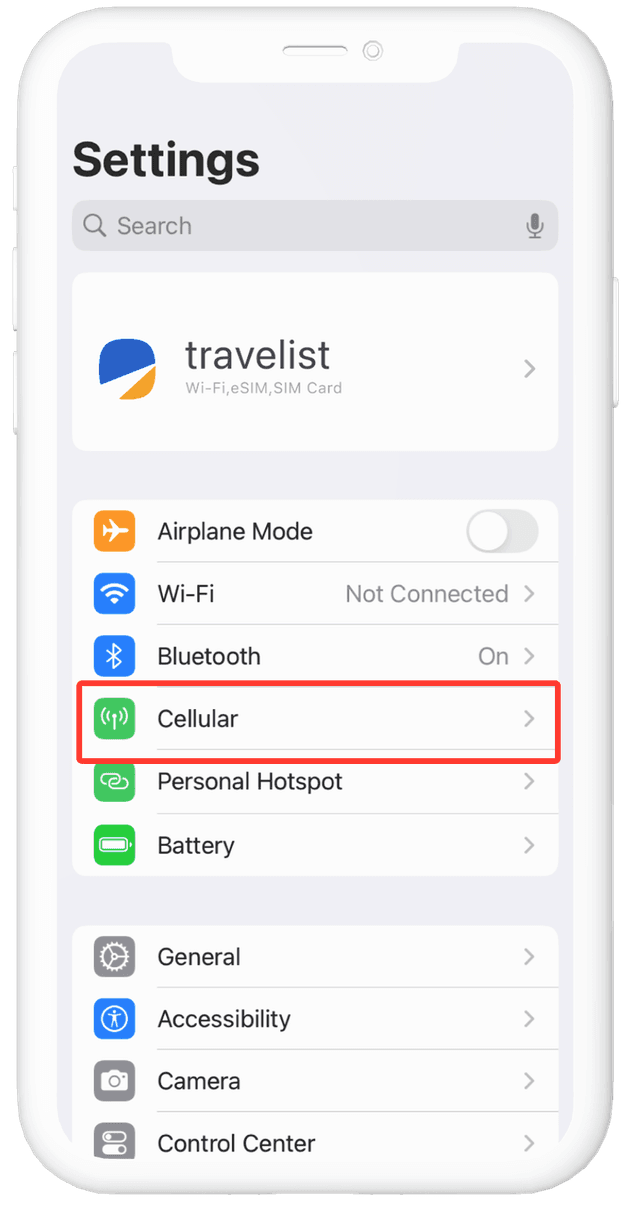
STEP 01
On your device, go to "Settings" > "Cellular" > "Add Cellular Plan" or "Set Up Cellular" > "Use QR Code."
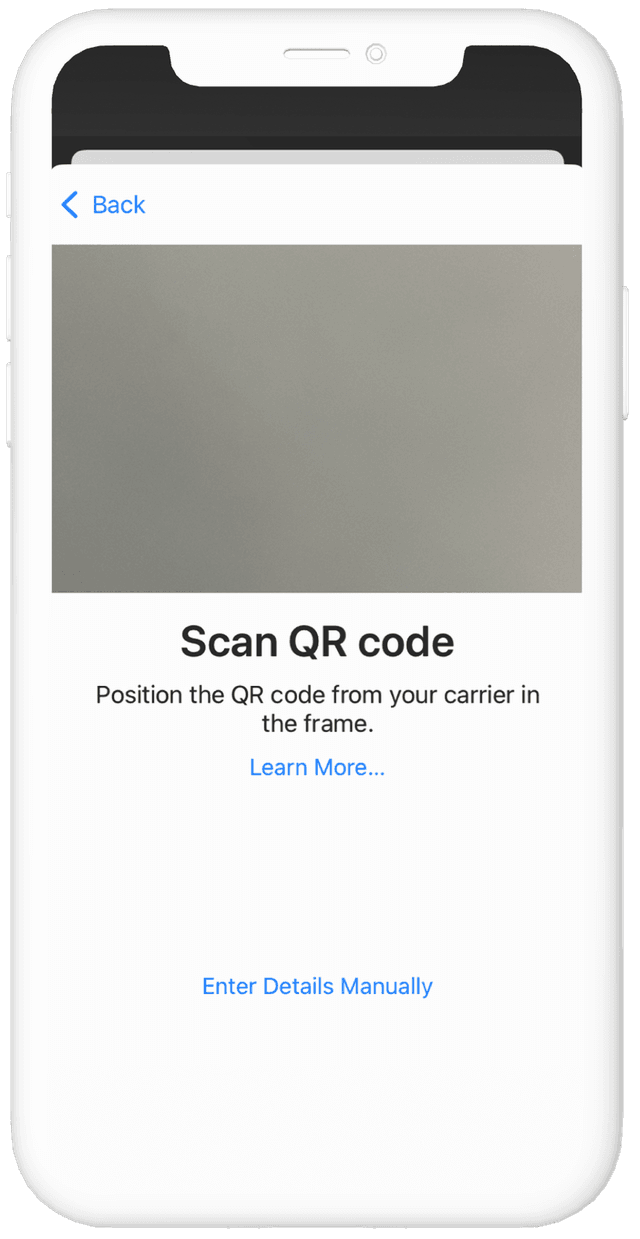
STEP 02
Scan the QR code and tap "Continue" twice, then wait for a moment. The eSIM will connect to the network. This may take a few minutes. Once connected, tap "Done."
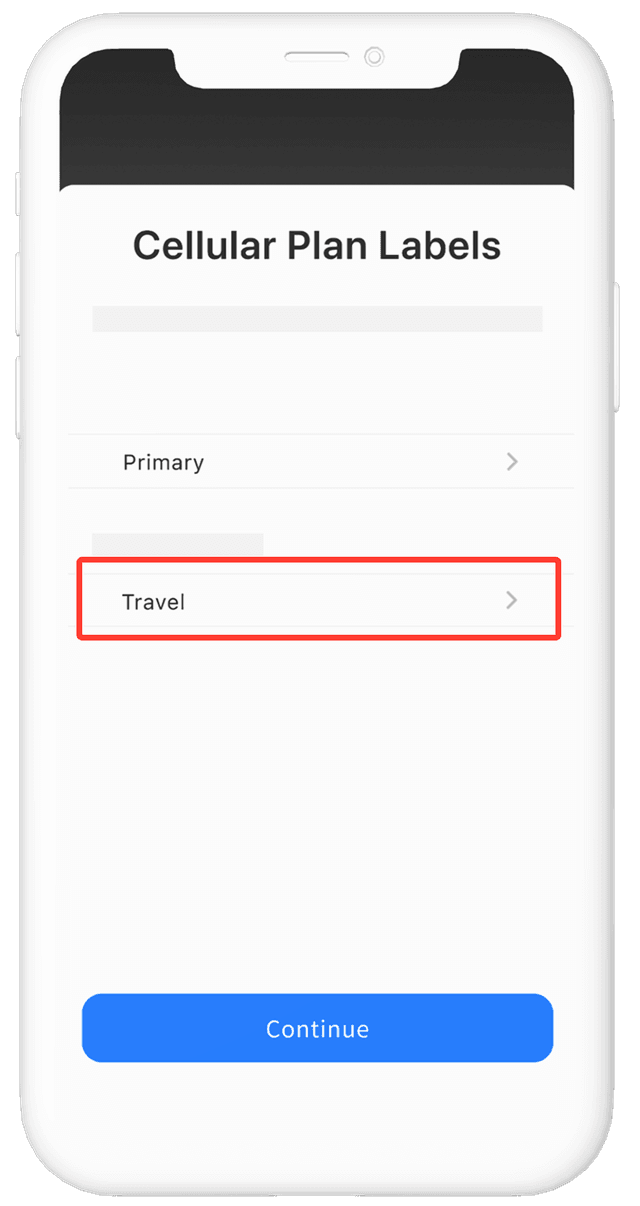
STEP 03
Select a name for the new eSIM plan.
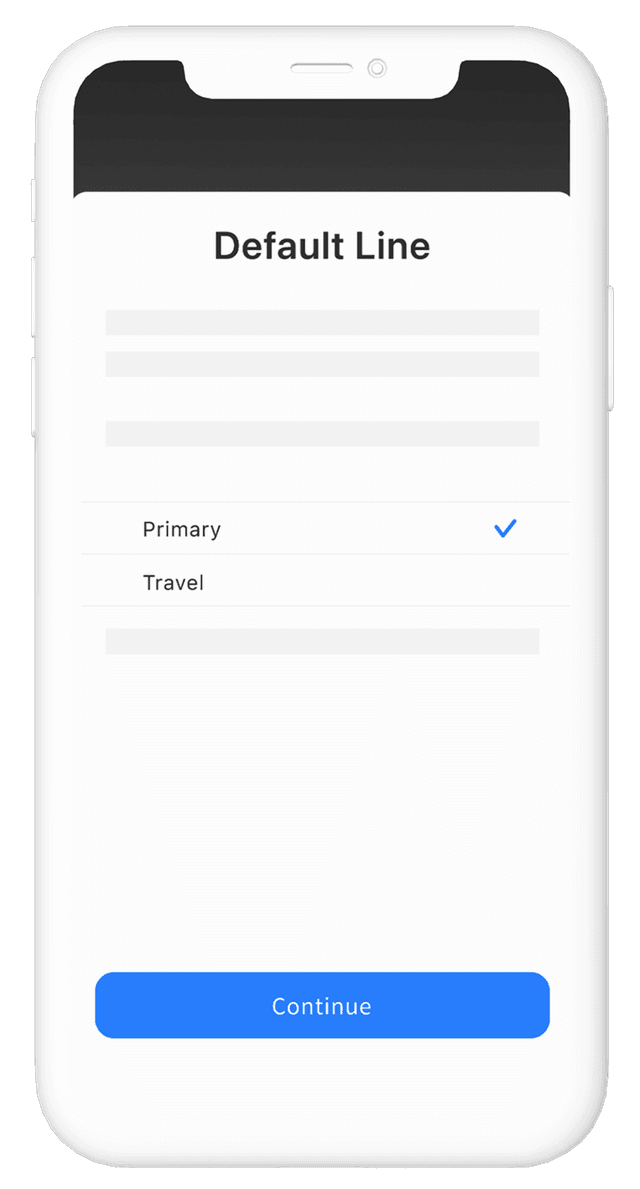
STEP 04
Choose 'Primary Line' as the default line and tap 'Continue'.
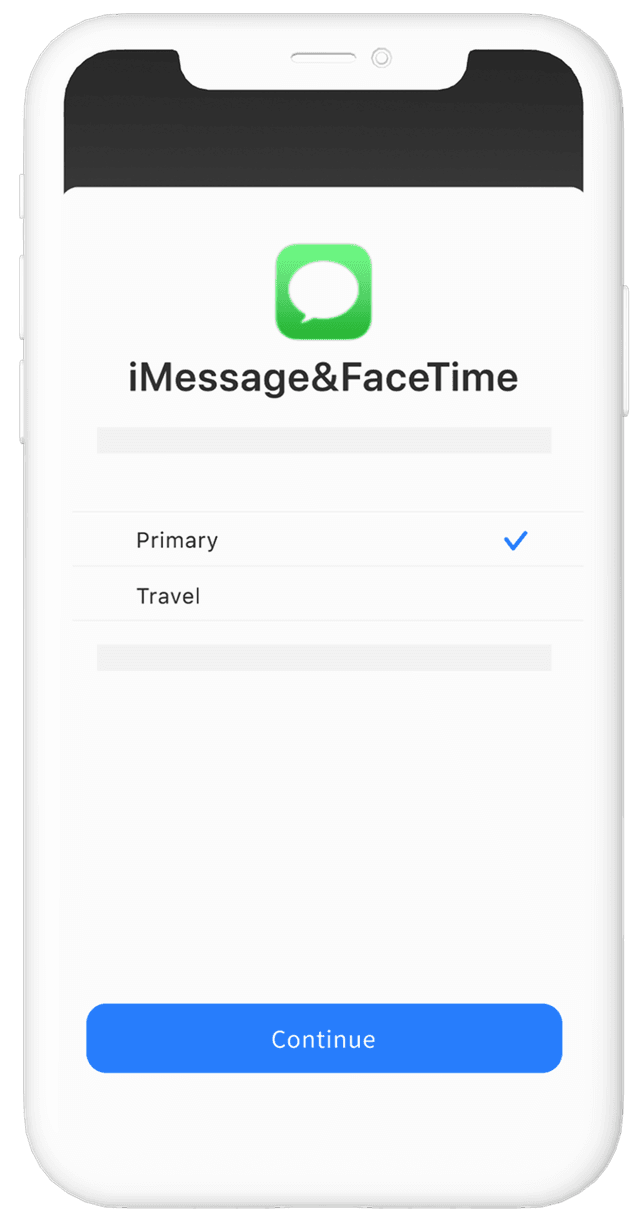
STEP 05
Select the "primary line" to use with your Apple ID for iMessage and FaceTime, then tap "Continue."
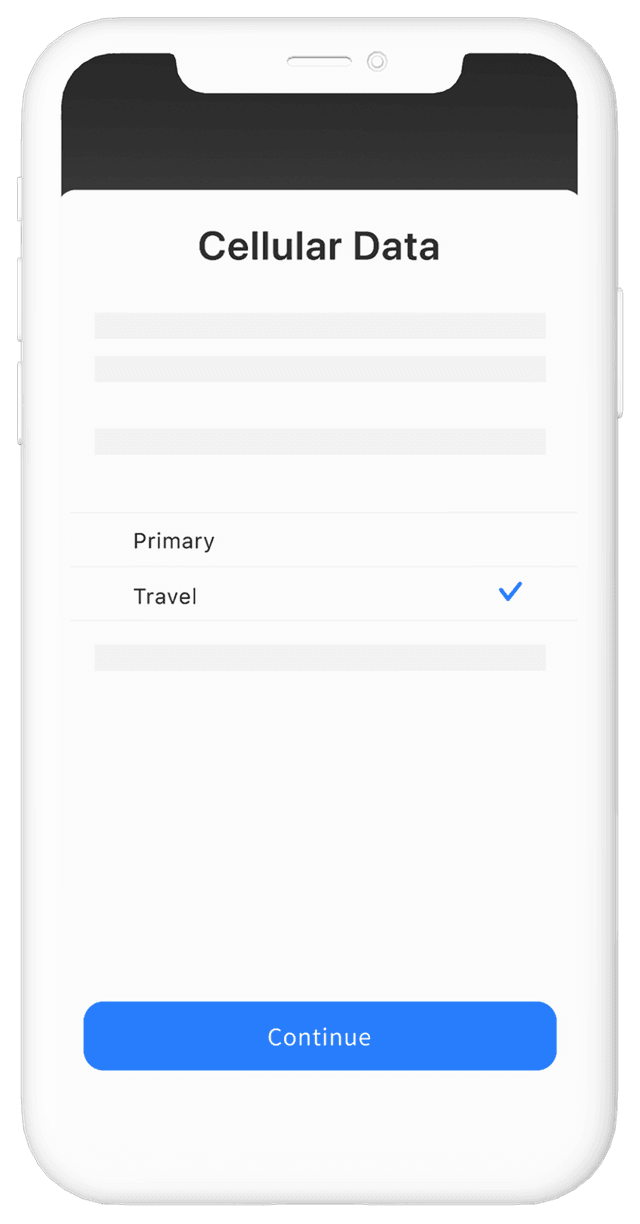
STEP 06
Choose a new eSIM plan for mobile data and tap "Continue."
Upon arrival
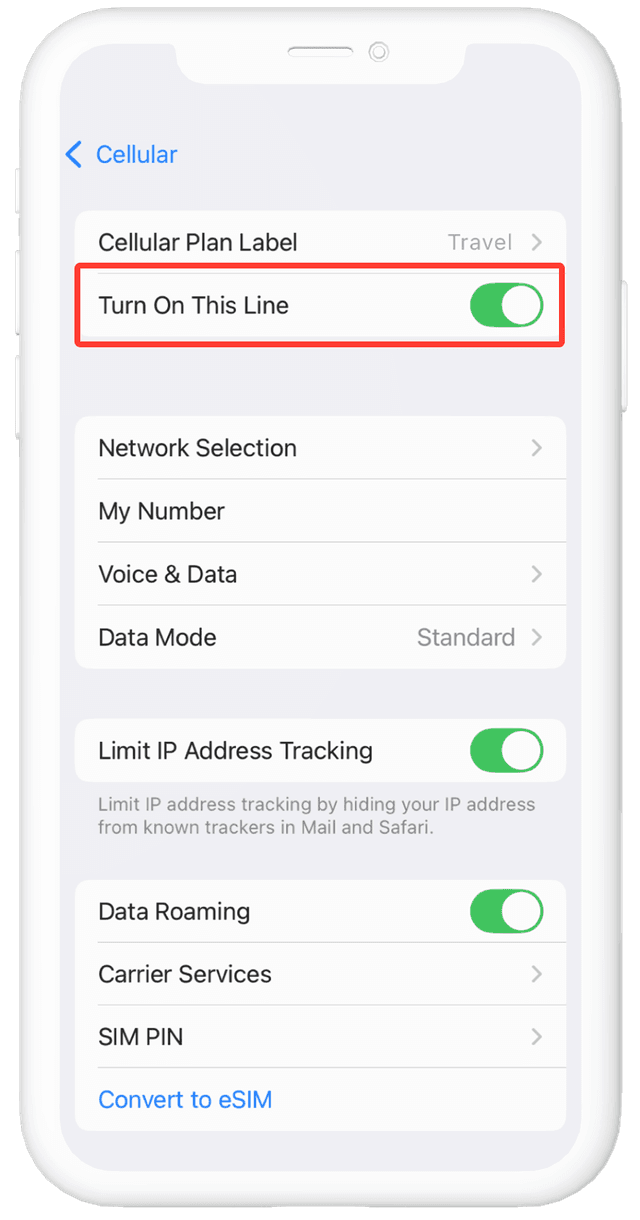
STEP 07
Go to "Mobile Data" and select the eSIM you recently downloaded to your device. Turn on the toggle for "Enable this line" and choose the new eSIM plan for mobile data.
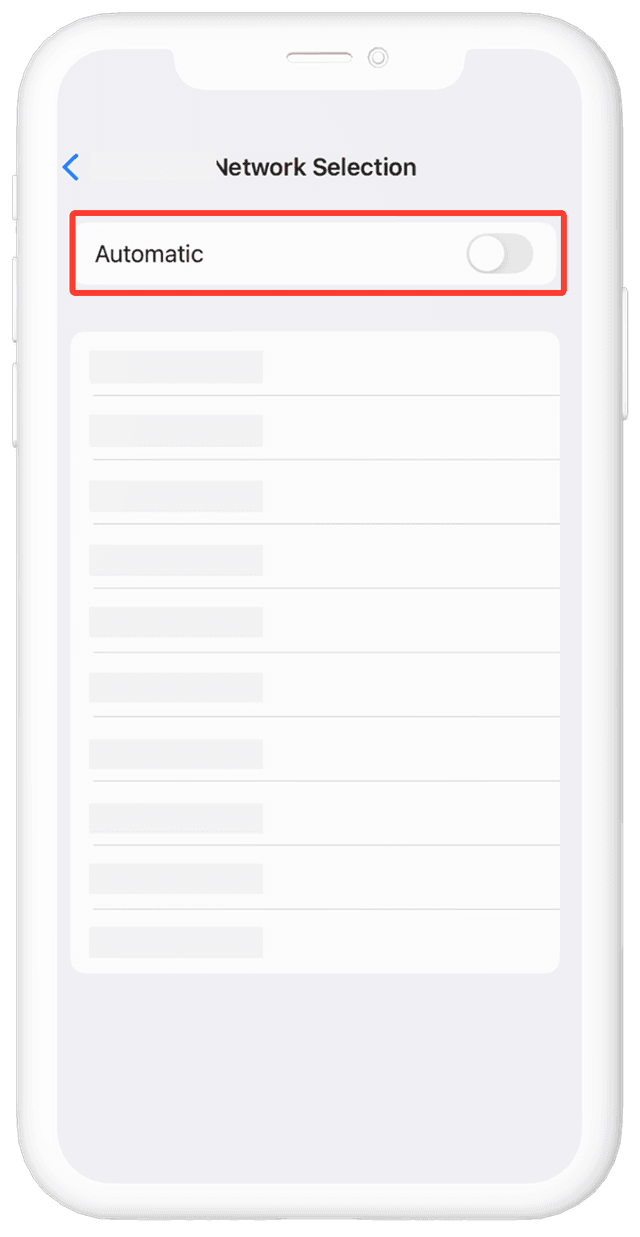
STEP 08
If the eSIM is connected to the wrong network, tap on "Network Selection," turn off the "Automatic" toggle, and then manually select the network.
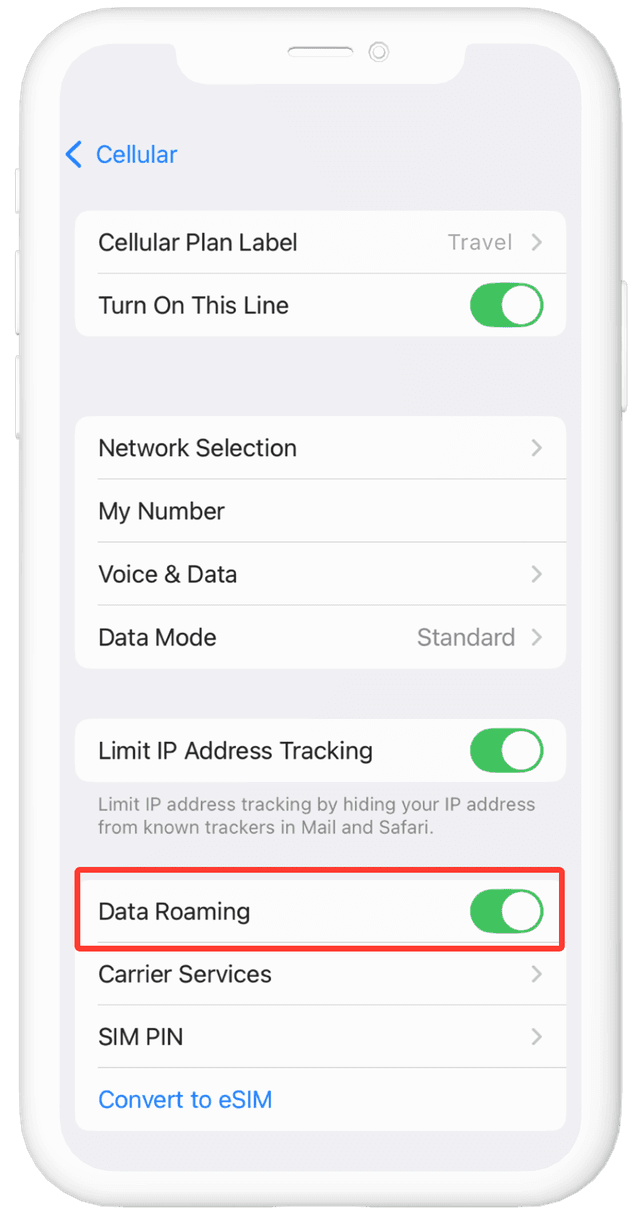
STEP 09
Turn on the "Data Roaming" toggle for the new eSIM plan.
The eSIM setup is complete.
If the above steps don't work for your device, try the steps below.
1.Go to Settings on your device, tap Mobile Data, then tap Add Mobile Data Plan.
2.Scan the QR code, then tap Add Mobile Data Plan.
3.Choose a name for the new eSIM plan.
4.Select Primary as the default line, then tap Continue.
5.Select Primary for iMessage and FaceTime using your Apple ID, then tap Continue.
6.For Mobile Data, select the new eSIM plan, then tap Continue.
Upon arrival
7.Go to Mobile Data, select the eSIM you recently downloaded, turn on the Turn On This Line toggle, and select the new eSIM plan under Mobile Data.
8.If the eSIM connects to the wrong network, tap Network Selection, turn off Automatic, and choose the correct network manually.
9.Turn on the Data Roaming toggle for the new eSIM plan.
For questions or inquiries regarding eSIM setup, please contact us here.